Why You Should Add Skills to Your LinkedIn Profile
Do you want to show up in more LinkedIn searches? Recruiters and others are always searching for people with specific skills. Here's a quick way to get preferential rank-stacked in those LinkedIn searches.
If you also want to know how to optimize your LinkedIn profile, here's a checklist for fitness and exercise professionals.
Why you should add Skills to your LinkedIn profile
According to LinkedIn, "adding specific skills to your LinkedIn profile allows you to showcase your abilities to other LinkedIn members."
Skills and endorsements can be thought of as the new keywords on LinkedIn. While including keywords in your Headline is probably the best way to optimize your ranking in search results, adding skills to the Skills section can certainly help when recruiters are looking for the perfect job candidate. It's also a great way to attract collaborations.
You can pin the top 3 skills to the top by reording your list. You can add up to 50 skills. Read on to learn how to add and manage your skills.
How to add Skills to your LinkedIn profile
LinkedIn offers detailed instruction on how to add skills to the Skills section of your profile. In general, there are 3 ways to highlight your skills:
- Add the Skills section and skills - This is the most popular way to add skills.
-
Add the skills to each job or position in your Experience section - Adding different skills to your Experience allows you to include job-specific skills associated with a position. These skills included in your Experience will appear under the Skills section as well. See the graphic below highlighting skills in your Experience section.
- Earn a Skill Badge - By taking a skill assessment, such as computer languages, computer applications, or technical skills, you can earn a Skill Badge that is identified on your profile for others to see. You just need to answer 15 multiple choice questions, score in the top 30%, and earn a skill badge. You may receive a link to the assessment because the recruiter for the job you’ve applied to has listed a skill as a Desired Skill. See the graphic below highlighting how to Demonstrate Skills o earn a Skill Badge.
To add the Skills section and skills:
- Click the
Me icon at the top of your LinkedIn homepage, then View Profile. - Click Add profile section button in your introduction section.
- Click Core and select Add skills from the dropdown.
- In the Add skill pop-up window, you can:
- Type the name of a skill and select it from the dropdown list that appears or select a skill from Suggested based on your profile. Once selected, it is automatically added to your list of skills.
- Select the checkboxes that show where you put this skill to use.
- Click Save.
Repeat the above steps to add more skills to your profile.
To remove skills:
- Click the
Me icon at the top of your LinkedIn homepage, then View Profile. - Scroll to the Skills section and click the
Edit icon. - In the Skills page, click the
Edit icon to the right of the skill that you want to delete. - Click Delete skill on the lower left , and then confirm Delete.
To reorder your skills:
- Click the
Me icon at top of your LinkedIn homepage. - Click View Profile.
- Scroll down to the Skills section and click the
Edit icon. - Click the
More icon on the upper right of the Skills page. - Click
Reorder from the dropdown. - In the pop-up window, click and drag the
Sort icon to the right of the corresponding skill you'd like to reorder.
How to get endorsements for your skills
According to LinkedIn, "once you've added a skill to your profile, your skills can be validated by 1st-degree connections to reinforce their weighting. These are called skill endorsements, which are different than recommendations. When a connection endorses your skills, it contributes to the strength of your profile, and increases the likelihood that you'll be discovered for opportunities related to the skills you possess."
By having more endorsements for your skills, you can boost your search ranking for that skill.
You can also endorse your connections' skills. LinkedIn shares, "endorsing your connections’ skills is a way to recognize any professional abilities that you’ve seen them demonstrate. You may be asked to provide feedback on skills and endorsements. Endorsing your colleagues can also help you to maintain strong connections with the people in your network. However, if you change your mind about a skill endorsement that you've given, you can remove it."
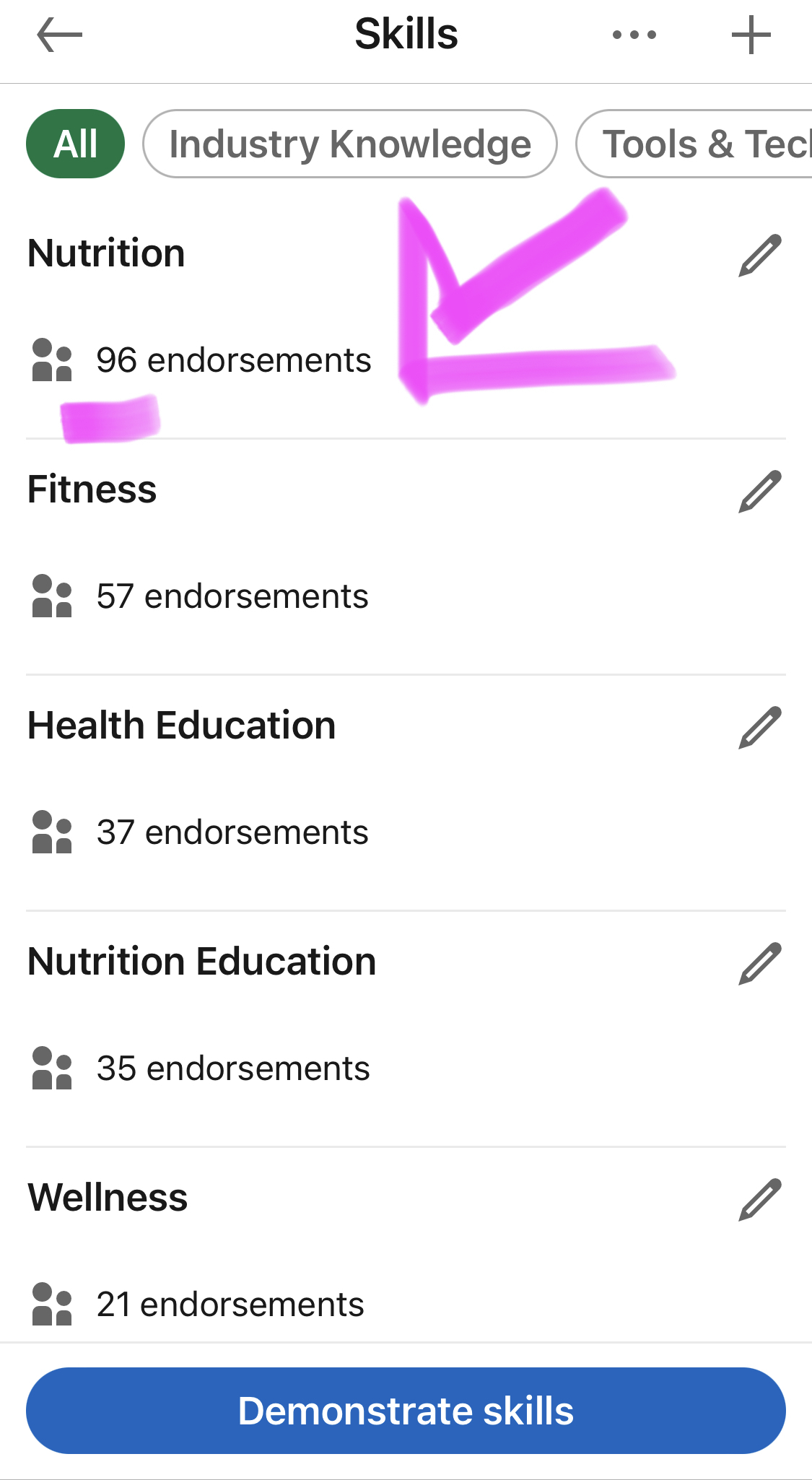
Examples of Skills to add to your profile:
Now that you know how and where to add specific skills to your profile, your next step if figuring out what skills to include in your profile. You also want to think about what skills other connections will want to endorse you for. Because those endorsements help validate your skills.
To determine which skills you include in your profile, start by thinking about what skills you want to be know for, or how you what to show up in search results.
For example, if you are a fitness instructor in the media and you want to be known for your fitness communication skills, you could list your skills as public speaking, copywriting, blogging, fitness communication, and/or organizational management.
Here's a list of skills you might include as a fitness professional:
- Blogging
- Brand ambassador
- Curriculum Development
- Diabetes education
- Eating disorders
- Food service management
- Google Search Engine Optimization or SEO
- Fitness coaching
- Fitness counseling
- Fitness research
- Exercise science
- Fitness talks
- Sports
- Public Health Education
- Public speaking
- Research
- Social media
- Spanish language
- Telehealth
- Vlogging
- Wellness
- Wellness Consulting
- Writing
Key Takeaways
Adding skills to your LinkedIn profile is just another way to highlight your value as a fitness professional. Take advantage of the opportunity to be found in search results by recruiters or others wanting to find someone with your expertise.
If you want to know how to optimize your LinkedIn profile, here's a checklist for fitness and exercise professionals.
